Creating a Project
Set up your first Process Mapper project: create a workspace, define business functions, and prepare for interviews.
Getting started with Process Mapper takes just a few minutes.
Step 1: Create Your Workspace
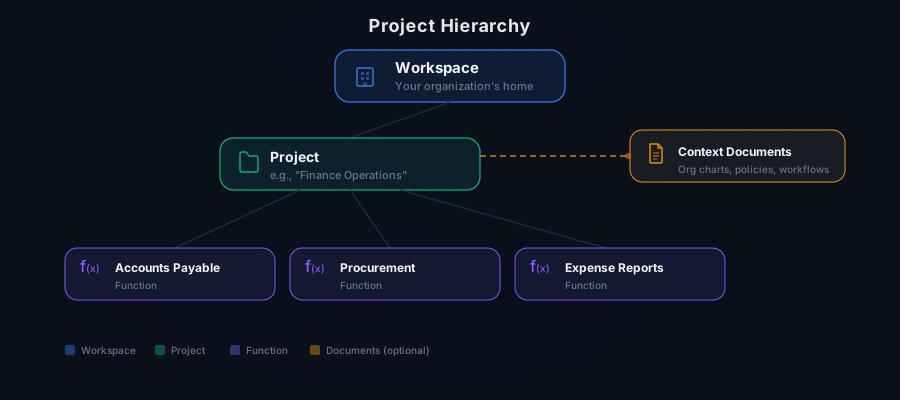
After signing up, create a team workspace. This is your organization's home in Process Mapper where team members can collaborate.
- Navigate to your dashboard and click Create Team
- Give your workspace a name (e.g., your company name)
- Invite team members who will participate in the discovery process
Step 2: Create a Project
Projects group related business functions for analysis. For example, you might create a project called "Finance Operations" or "Customer Onboarding."
- Click New Project from your workspace dashboard
- Provide a project name and description
- The description helps the AI interviewer understand the context
Step 3: Add Business Functions
Within a project, define the business functions you want to map. Functions represent departments, teams, or process areas.
- Common functions: Accounts Payable, HR Onboarding, Order Fulfillment, Customer Support
- Each function will have its own set of interviews and process maps
- You can add functions at any time as your discovery expands
Step 4: Upload Context Documents (Optional)
Before conducting interviews, you can upload organizational documents to give the AI better context:
- Organization charts
- Existing process documentation
- Policy documents
- Workflow descriptions
These documents help the AI ask more relevant and targeted questions during interviews.
Next Steps
Once your project is set up, you're ready to start conducting AI interviews with stakeholders from each business function.