Domain Restrictions
Restrict team invitations to specific email domains — prevent accidental external access and enforce corporate email policies.
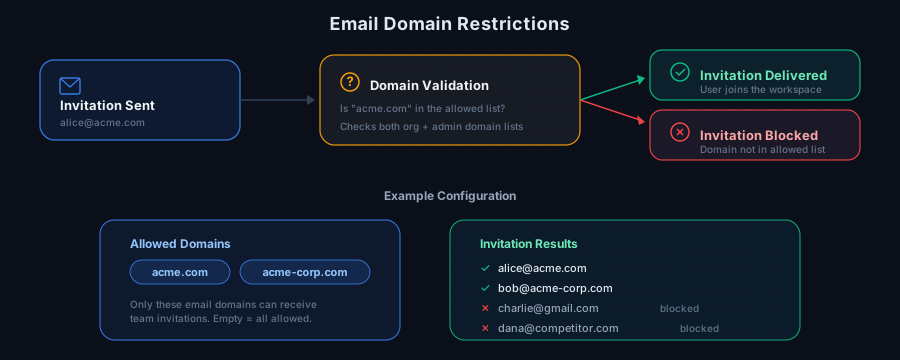
Domain restrictions let team owners control which email addresses can be invited to their workspace. When configured, only users with email addresses matching your allowed domains can receive invitations.
Why Use Domain Restrictions?
- Prevent accidental access — Block invitations to personal email addresses (gmail.com, yahoo.com, etc.)
- Enforce corporate policies — Ensure only employees with your company email can join
- Multi-domain support — Allow multiple corporate domains (e.g., acme.com and acme-corp.com)
- Subsidiary management — Include domains for partner companies or subsidiaries that need access
How It Works
When domain restrictions are configured, every team invitation is validated before it's sent:
- The invitee's email domain is extracted (e.g., "acme.com" from "alice@acme.com")
- The domain is checked against your allowed domains list
- If the domain matches, the invitation proceeds normally
- If the domain doesn't match, the invitation is blocked with an error message
No restrictions configured? All email domains are allowed by default. Domain restrictions are opt-in.
Setting Up Domain Restrictions
- Navigate to your workspace Settings page
- Find the Allowed Email Domains section
- Enter each allowed domain (e.g., "acme.com") and press Enter to add it
- Click Save to apply
Domain Format
- Enter just the domain, not the full email address:
acme.com(not@acme.com) - Domains are case-insensitive:
Acme.comandacme.comare treated the same - You can add as many domains as needed
Two Layers of Protection
Domain restrictions operate at two levels:
| Layer | Configured By | Purpose |
|---|---|---|
| Organization level | Team owners | Self-service domain management for your workspace |
| Platform level | Platform administrators | Global domain policies enforced across specific organizations |
When both layers are configured, the most restrictive combination applies. A domain must be allowed by both layers for an invitation to succeed.
Example
If your organization allows acme.com and partner.com, but the platform admin only allows acme.com:
alice@acme.com— Allowed (in both lists)bob@partner.com— Blocked (not in platform admin list)
Common Configurations
Single Corporate Domain
Allow only your primary company domain:
acme.com
Multiple Office Domains
Allow your main domain plus regional offices:
acme.comacme.co.ukacme.in
Including Consultants
Allow your domain plus a trusted consulting partner:
acme.comtrusted-consultants.com
Removing Restrictions
To go back to allowing all email domains:
- Navigate to workspace Settings
- Remove all domains from the Allowed Email Domains list
- Click Save
When the list is empty, all email domains are permitted again.
Frequently Asked Questions
Does this affect existing team members? No. Domain restrictions only apply to new invitations. Existing members are not affected even if their domain is later removed from the allowed list.
What happens to pending invitations? Pending invitations that were sent before restrictions were configured will still be valid. New restrictions only apply to invitations sent after the change.
Can I restrict to a single email address? Domain restrictions work at the domain level, not individual email addresses. For single-user access control, manage invitations directly through the team members page.